Features & Guides
Everything you need to know about VideoShift.
100% Offline & Private
VideoShift runs entirely locally on your Mac. We don‘t use cloud servers, which means your videos are processed instantly without using your internet bandwidth. Most importantly, your private videos remain 100% private.
How to Customize VideoShift
VideoShift is designed to feel native to your macOS experience. You can customize the language and choose between Dark and Light themes. Follow these simple steps:
Step 1: Open Settings
On the main screen of VideoShift, locate the Settings button in the top right corner. Click it to open the configuration menu.
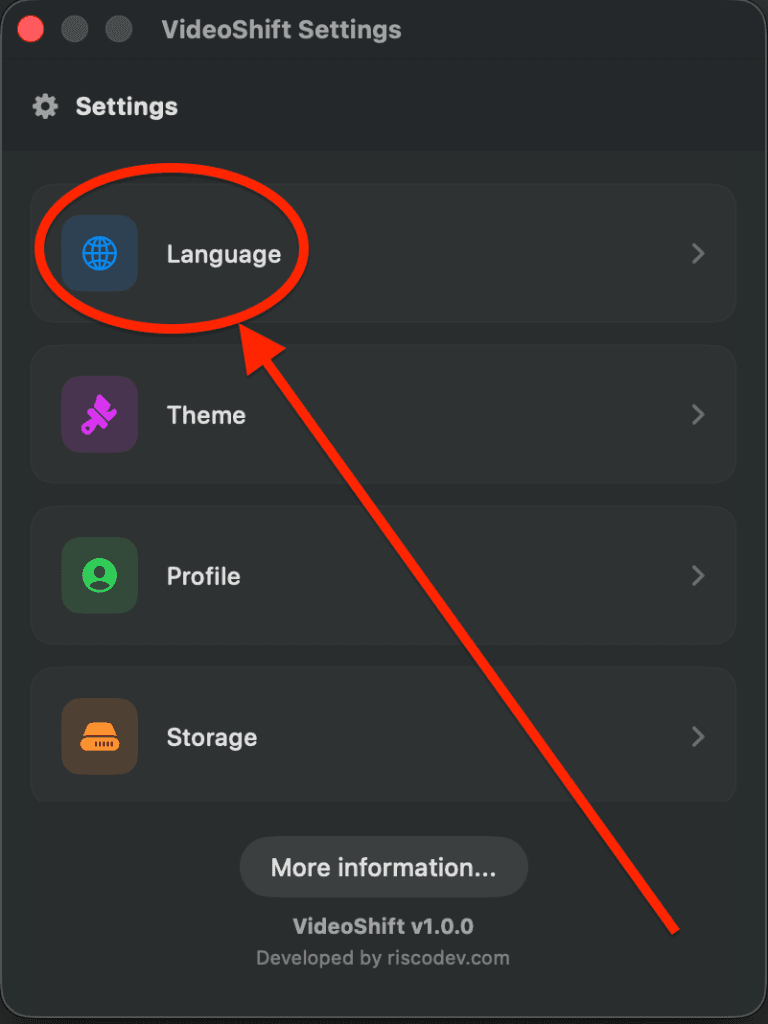
Step 2: Change Language or Theme
In the Settings menu, you can click on Language to switch the app‘s language, or select Theme to switch between Dark and Light modes. More customization options like Profile and Storage are currently in development!